Crystal Awards Supplier - fine quality crystal awards offered with free engraving and fixed price UK delivery.

Crystal Awards Supplier .co.uk
21 Glasgow Road, Uddingston,
Glasgow G71 7AU, U.K.
Telephone 0844 330 9948

Crystal-Awards-Supplier logo

Crystal Awards Supplier Home > Engraving > Logo Engraving Help

View your Cart

Logo Engraving Guide

The set-up fee (or 'origination' fee) is only paid once per logo graphic. If you order more than one product and require the same logo to be engraved on all your items, the set-up fee is only paid once. If you have paid the set-up fee with a previous order, and you wish to have the same logo engraved on a new order, you do not pay again.

The two sections below outline how to order and checkout without paying the set-up fee again:


Logo engraving on multiple items within the same order
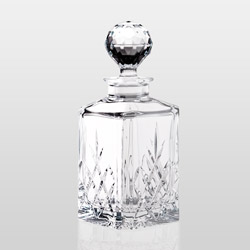
If you want to add logo engraving to two or more different products in the same order, these instructions are for you. Lets say, for example, you want to order a decanter and two whisky tumblers, and you want the same logo engraved on all items. First step is to select your first product, in this case Decanter R4. On the product page, you will see the area marked '2. Add text / logo for engraving':

Step 1 for adding a new logo

1. You need to locate your logo graphic on your own PC so that it can be uploaded with your order. To do this, click on the 'Browse' button (as shown above). This will open an explorer window on your PC, allowing you to locate the folder with your logo graphic in it:

Step 2 for adding a new logo

2. Select the file you want to upload, and click the 'Open' button. This will upload the file to our Website.

Step 3 for adding a new logo

3. At this stage you can also specify any text engraving you require, by typing the inscription into some or all of the three fields marked Line 1, Line 2 and Line 3. You can also choose a font from the drop-down menu, or leave it as it is for the engraver to choose a style suitable for your product. When you have selected your logo graphic, and added any text for engraving, click the 'Add to Cart' button.

Step 4 for adding a new logo

4. You will be taken to a page showing your cart contents. This is the 'View Cart' page. Click the button marked 'CHECKOUT'.

Step 5 for adding a new logo

5. You will be taken to a page asking you to login (if you already have an account with us) or else to register (if you are a new customer). Follow the appropriate instruction and you will be taken back to the 'View Cart' page:

Step 6 for adding a new logo

6. Click the button marked 'Continue Shopping' to return to the product page.

Steps 7 and 8 for adding a new logo

7. From the product page you can use the navigation links on the left, or the search function below them, to locate your next product.
8. When you get to the product page for your next product, if you require the same logo to be engraved on this product just click the box marked 'Use Existing Logo'. As you are now logged-in, you will not be charged the logo set-up fee a second time for this logo:

Step 9 for adding a new logo

9. Your 'View Cart' page will show all the products and any logo set-up (origination) fees. When you are ready to checkout, click the button marked 'CHECKOUT'. This time you will be taken to the first (of four) page of checkout where the shipping fees and any taxes for your destination will be shown.


Logo engraving on a new order when set-up fee has previously been paid
Instructions to follow


Crystal-Awards-Supplier.co.uk is owned by Uppermost Business Gifts Ltd.
21 Glasgow Road, Uddingston, Glasgow G71 7AU, U.K.

Crystal Awards Site Map | Best Selling Crystal Products | Resources